


• AffProfAffProf
  • Home
  • Dashboard
  • Products
  • Links
  • Tags
Account
  • Profile
  • Settings
  • Billing
  • Help Center
  • Contact & Feedback
  1. Home
  2. Help Center
  3. Custom domains
Back to Help Center

Custom domains

Replace AffProf’s default domain with your own subdomain, like go.yourbrand.com or links.yourbrand.com, on every short link in your account.

Custom domains are a Pro feature. One custom domain per account. Setup takes about 5 minutes plus DNS propagation time.

What changes when you add a custom domain

  • Every short link in your account automatically resolves through the new domain.
  • Old affprof.com/go/... URLs continue to work. Anything already shared keeps redirecting.
  • AffProf provisions an SSL certificate automatically, so HTTPS works out of the box.
  • Analytics, monitoring, fallbacks, and QR codes keep working identically. Only the URL domain changes.
Before you start
Make sure you have the right domain access before adding anything in AffProf.
  • A domain you own at any registrar, such as Namecheap, GoDaddy, Cloudflare, or Squarespace Domains.
  • Access to DNS settings, usually in your registrar dashboard or Cloudflare.
  • A subdomain dedicated to AffProf, such as go, links, l, to, or lnk.
Subdomains only: AffProf does not support root domains yet. yourbrand.com will not work; use something like go.yourbrand.com.
Step 1: Add your subdomain
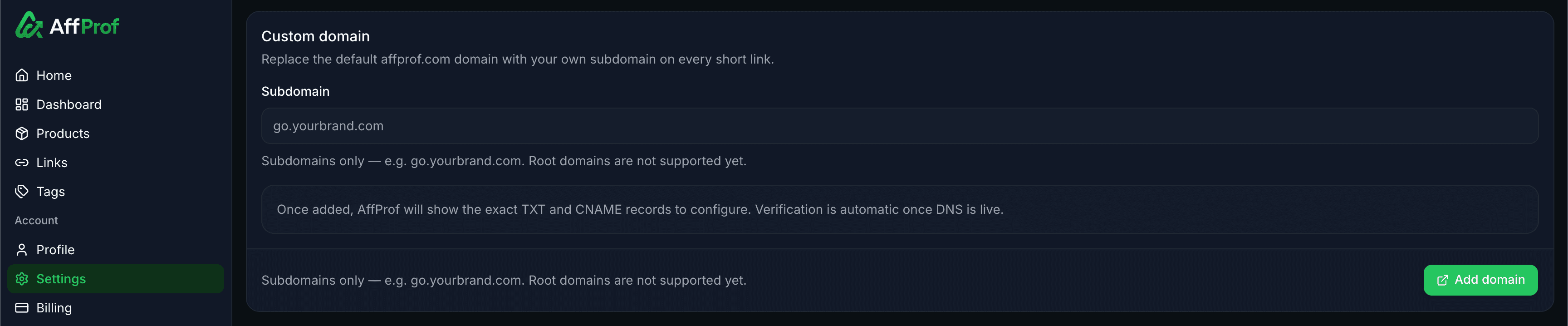
Go to Settings -> Custom domain.
custom-domain-step1.png
  1. 1Type your full subdomain in the Subdomain field, for example go.yourbrand.com.
  2. 2Click Add domain.
  3. 3AffProf saves it as Pending verification and shows the DNS records you need.
Step 2: Configure your DNS records
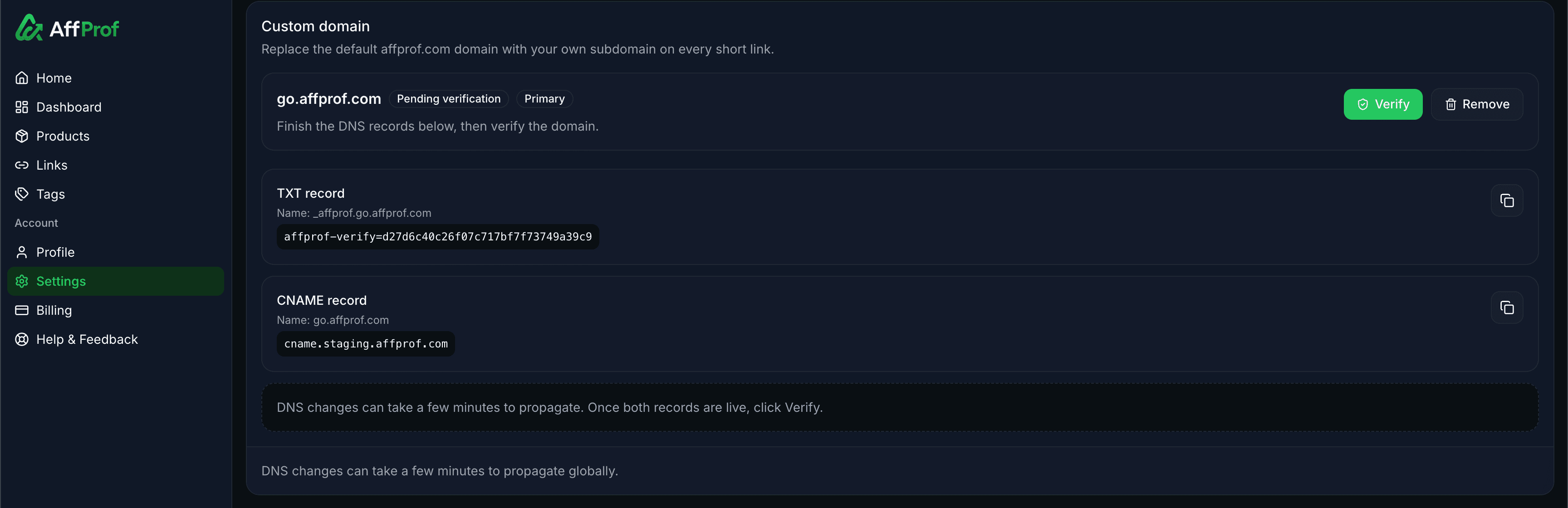
Add both records shown in AffProf. Both are required.
custom-domain-step2.png
TXT record for verification
Type
TXT
Name
_affprof.go.yourbrand.com or the exact name shown in your dashboard
Value
affprof-verify=... or the long string shown in your dashboard
TTL
Default, usually 3600 seconds, or Auto in Cloudflare
CNAME record for routing
Type
CNAME
Name
go.yourbrand.com or your full subdomain
Value
cname.affprof.com
TTL
Default
Cloudflare proxy
OFF / DNS only for initial verification
Use the copy buttons in AffProf to grab each value exactly. A typo, extra space, missing dot, or capitalization issue can make verification fail.
  • Cloudflare: Dashboard -> your domain -> DNS -> Records -> Add record.
  • Namecheap: Dashboard -> Domain List -> Manage -> Advanced DNS -> Add New Record.
  • GoDaddy: Dashboard -> Products -> DNS -> Add -> choose record type.
  • Squarespace Domains: DNS section -> Manage custom records.
Step 3: Click Verify
Return to Settings -> Custom domain and click Verify next to your domain.

DNS changes usually propagate in a few minutes, but can occasionally take up to 24 hours. If verification fails the first time, wait 5-10 minutes and click Verify again.

custom-domain-step3.png

When verification succeeds, the domain is marked Verified and Primary. AffProf automatically issues an SSL certificate. Within a few seconds, short links resolve through the new domain.

Troubleshooting

Verification keeps failing
  • The TXT record name is wrong. AffProf needs the underscore prefix, such as _affprof.go.yourbrand.com.
  • Your registrar may auto-append the root domain, creating _affprof.go.yourbrand.com.yourbrand.com by accident.
  • The CNAME value must be exactly cname.affprof.com, with no https://, extra spaces, or trailing dot.
  • Cloudflare proxy must be OFF / DNS only for initial verification.
  • DNS may not have propagated yet. Use dnschecker.org to confirm both records are visible globally.
  • TXT and CNAME are different record types. Make sure each one was added with the correct type.
Verification works but links do not load
  • SSL provisioning may need 2-5 extra minutes after verification.
  • Test in an incognito window and confirm you are using https://.
  • Try a different browser or device to rule out cache.
  • If links still fail after 30 minutes, email hello@affprof.com with your domain.
Links work but show a security warning
  • The SSL certificate may still be provisioning.
  • There may be a mismatch between the typed domain and issued certificate.
  • Wait 10-15 minutes and refresh. If it persists, contact us.
The domain is verified but not Primary
  • AffProf automatically marks verified custom domains as Primary.
  • Refresh the Settings page. If the badge is still missing, contact hello@affprof.com.

Changing or removing your custom domain

To remove it
  • Click Remove next to the domain in Settings -> Custom domain.
  • All short links revert to the default affprof.com/go/... format immediately.
  • Old links shared with the custom domain stop working only if you remove DNS records at your registrar.
  • You can add a different custom domain anytime.
To change to a different subdomain
  • Remove the current domain.
  • Add the new subdomain, for example links.yourbrand.com instead of go.yourbrand.com.
  • Configure new DNS records. TXT and CNAME values will be different.
  • Click Verify.
  • If you want the old subdomain to keep working during transition, do not delete old DNS records until nothing important references them.
Limitations
Custom domains
  • One custom domain per account.
  • Subdomains only. Root domains like yourbrand.com are not supported.
  • Per-link domain selection is not supported. The custom domain replaces the default for all links.
Common questions
FAQ
Does my custom domain affect analytics?

No. Analytics work identically on the default AffProf domain and on a custom domain.

Will my QR codes update to use the new domain?

QR codes generated after adding the custom domain use it. Already-downloaded PNGs do not change; regenerate them if needed.

Does the custom domain affect link health monitoring?

No. AffProf monitors destination URLs, not your custom domain. Monitoring works identically.

Can I use a wildcard subdomain?

Not currently. Each subdomain must be added explicitly.

My DNS provider does not support CNAME at the root.

That is expected. CNAME at root domains is a DNS limitation, which is why AffProf supports subdomains.

Need help with verification?

Email hello@affprof.com with:

  • Your AffProf account email.
  • The domain you are trying to verify.
  • A screenshot of your DNS panel showing both TXT and CNAME records.
  • We respond within 24 hours, faster for Pro users.