• AffProfAffProf
  • Home
  • Dashboard
  • Products
  • Links
  • Tags
Account
  • Profile
  • Settings
  • Billing
  • Help Center
  • Contact & Feedback
  1. Home
  2. Help Center
  3. Brands & QR codes
Back to Help Center

Brands & QR codes

QR codes turn any physical surface into a clickable link: videos, presentations, packaging, business cards, displays, and livestream slides. AffProf generates a QR code for every short link automatically.

On Pro, you can apply a brand, which is a saved combination of logo and colors, so every QR looks like part of your design system instead of a generic shortener artifact.

Automatic QR codes

Every short link gets a QR code automatically, including on the Free plan.

Reusable brands

Save logo, foreground color, background color, and default selection once.

Scan analytics

QR scans are tracked separately from regular clicks in link analytics.

What is a brand in AffProf?
A brand is a saved style preset for QR codes.
  • Name: your internal label, such as "My YouTube" or "Holiday Promo".
  • Logo: placed in the center of QR codes using this brand.
  • QR foreground color: the color of the QR pattern.
  • QR background color: the color behind the QR pattern.
  • Default flag: whether this brand is pre-selected in the QR dialog.
Branded QR codes with custom logo and colors are a Pro feature. Free QR codes still work, but use the standard black-and-white style without a logo.
Why use branded QR codes
Branded QRs can perform better than generic ones.
  • Trust: a logo makes the destination feel recognizable before the scan.
  • Brand consistency: QR codes match your colors and visual system.
  • Recall: people who do not scan still see your logo in the frame, package, or slide.
Creating a brand
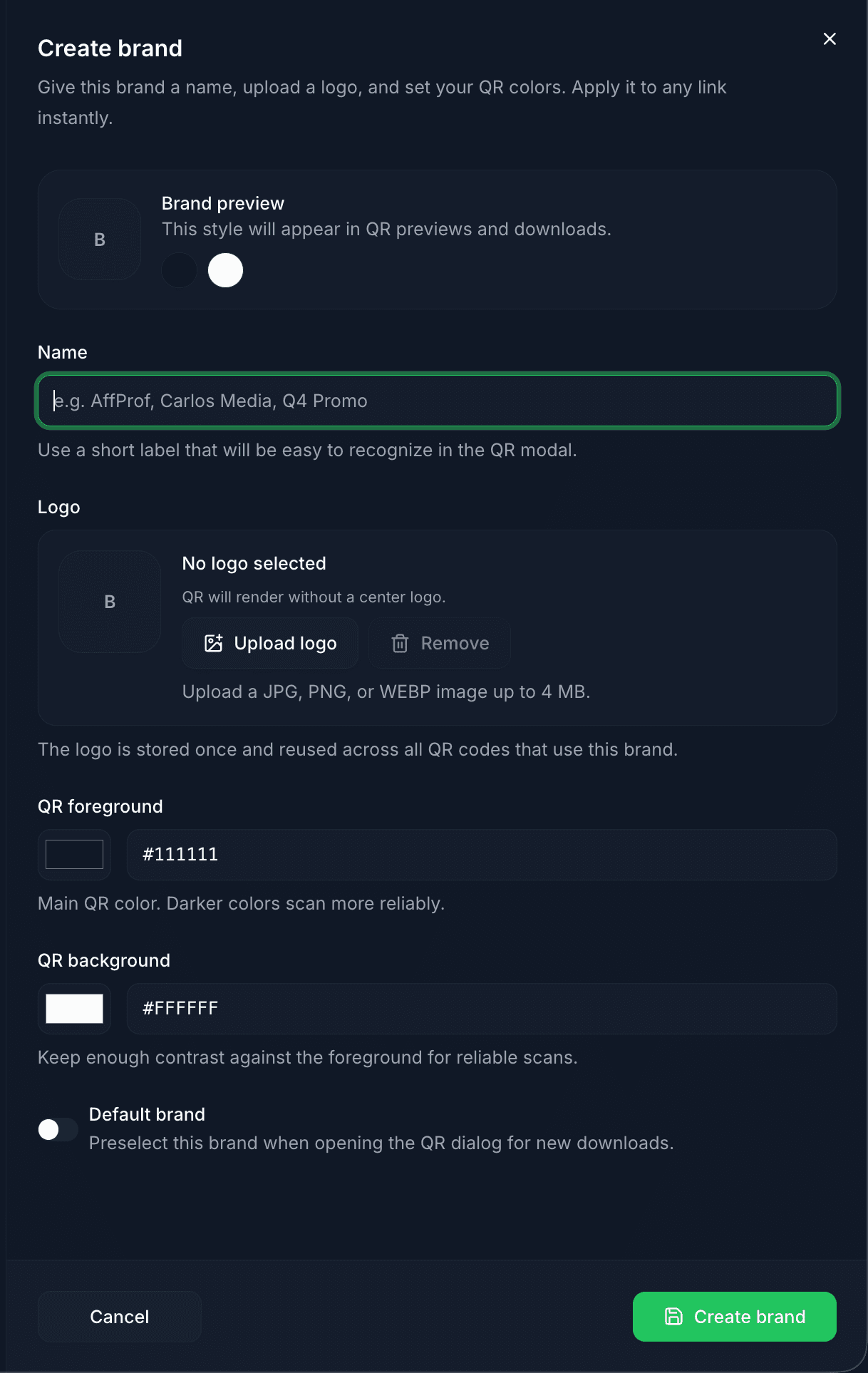
Go to Settings -> Brands -> Add brand.
create-brand.png
  • Name: use a short label that is easy to recognize in the QR dialog later.
  • Logo: upload JPG, PNG, or WEBP up to 4 MB.
  • QR foreground: darker colors scan more reliably against light backgrounds.
  • QR background: keep it light enough to maintain strong contrast.
  • Default brand: toggle this on if you want this brand pre-selected when opening the QR dialog for any link that doesn’t have its own brand assigned. The default acts as a fallback — it’s used when a link wasn’t configured with a specific brand.

If a link has its own brand set (in the link’s edit form, under QR brand), that brand takes priority over the default when opening the QR dialog.

The contrast rule: if your QR is hard to read with squinted eyes, it will be hard for phone cameras too. Test before printing.
Brand precedence: how AffProf chooses which brand to pre-select
When you open the QR dialog for any link, AffProf decides which brand to show pre-selected based on this order.
  1. 1The link has its own brand assigned -> that brand is pre-selected. Configured per-link in the link’s edit form, under Options -> QR brand.
  2. 2The link has no brand, but you have a default brand -> the default brand is pre-selected.
  3. 3The link has no brand and you have no default -> "Standard AffProf QR" (no brand, plain black-and-white) is pre-selected.

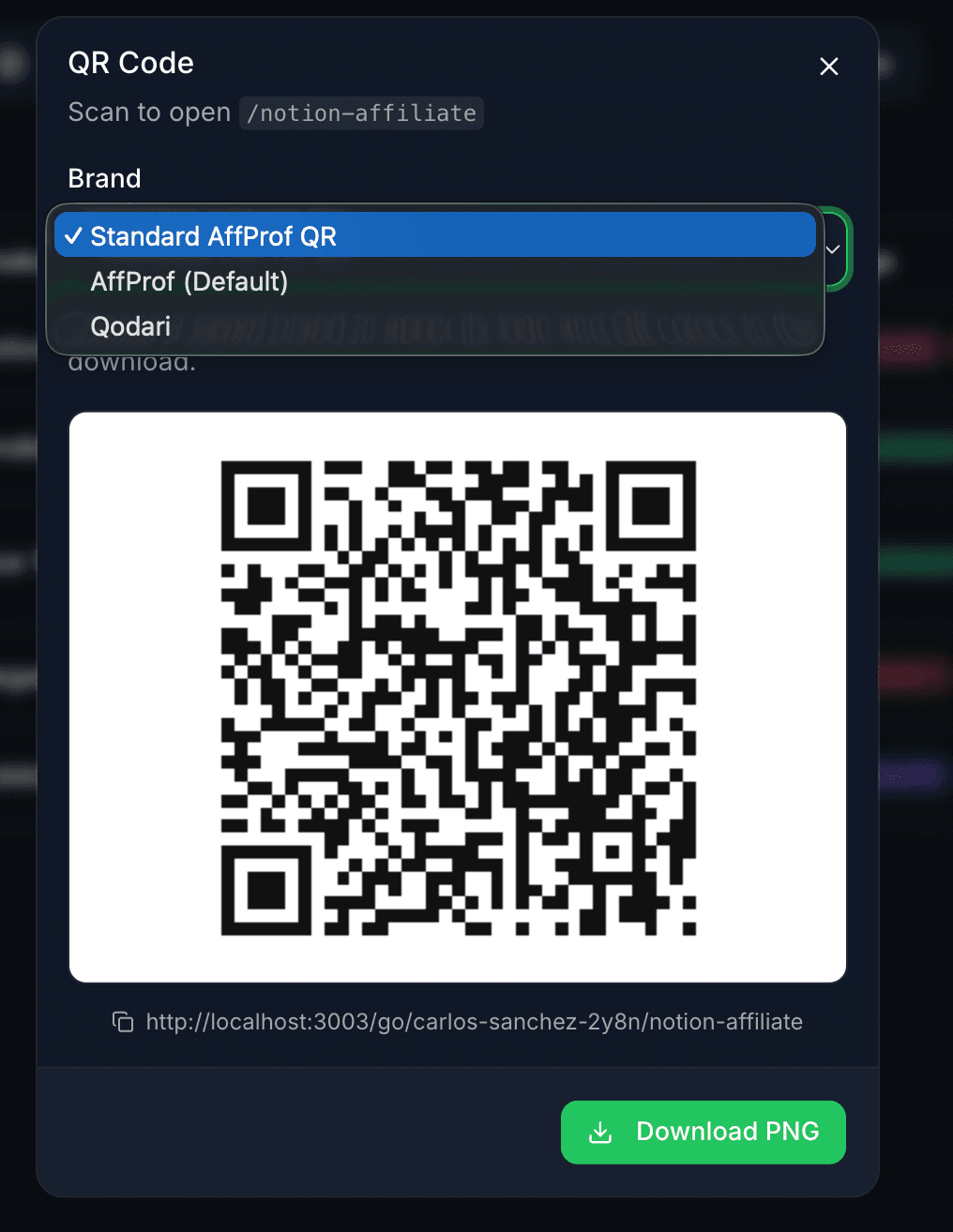
Regardless of what’s pre-selected, the dropdown always shows all your saved brands plus the Standard option, so you can switch at download time.

Practical tip: assign a brand to each link when you create it (using the QR brand field in the link form). That way, every time you open that link’s QR dialog, the right brand is already there — no manual selection needed.
Logo and color tips
Use QR-friendly assets so the code stays scannable.
  • Use square or near-square logos. Round logos work too.
  • Use high contrast against the QR background.
  • Prefer simple recognizable shapes over fine detail.
  • Avoid thin lines, small text, low-contrast colors, photos, or complex imagery.
  • Pastel and very light backgrounds work better than mid-tone or dark backgrounds.
Managing your brands
Go to Settings -> Brands to see saved brands.

Go to Settings -> Brands to see all your saved brands. Each row shows:

  • The brand’s logo preview.
  • Name with a ⭐ Default badge if it’s currently the default.
  • Color preview circles showing the foreground and background colors.
  • Hex codes of both colors.

Action buttons:

  • Set default (only on non-default brands): makes this brand the new default. Only one brand can be default at a time, so setting a new default automatically removes the badge from the previous one.
  • Edit: change the name, logo, colors, or default status.
  • Delete: remove the brand. See "What happens when you delete a brand" below.
  • You can have as many brands as you want. Use Add brand at the bottom to create a new one.

What happens when you delete a brand

  • Existing QR codes you’ve already downloaded with this brand are not affected. You already have the PNG files saved.
  • Links that had this brand assigned automatically fall back to the next available option in the precedence chain: default brand if you have one, otherwise "Standard AffProf QR".
  • Future QR downloads can no longer use the deleted brand.
Generating a QR code for a link
Open the QR dialog from Links or from the link detail panel.
  1. 1From Links: find the link, open the actions menu, and click QR Code.
  2. 2From the link detail panel: open any link and open the QR code section.
  3. 3Choose Standard AffProf QR or one of your saved brands in the dropdown.
qr-dropdown.png
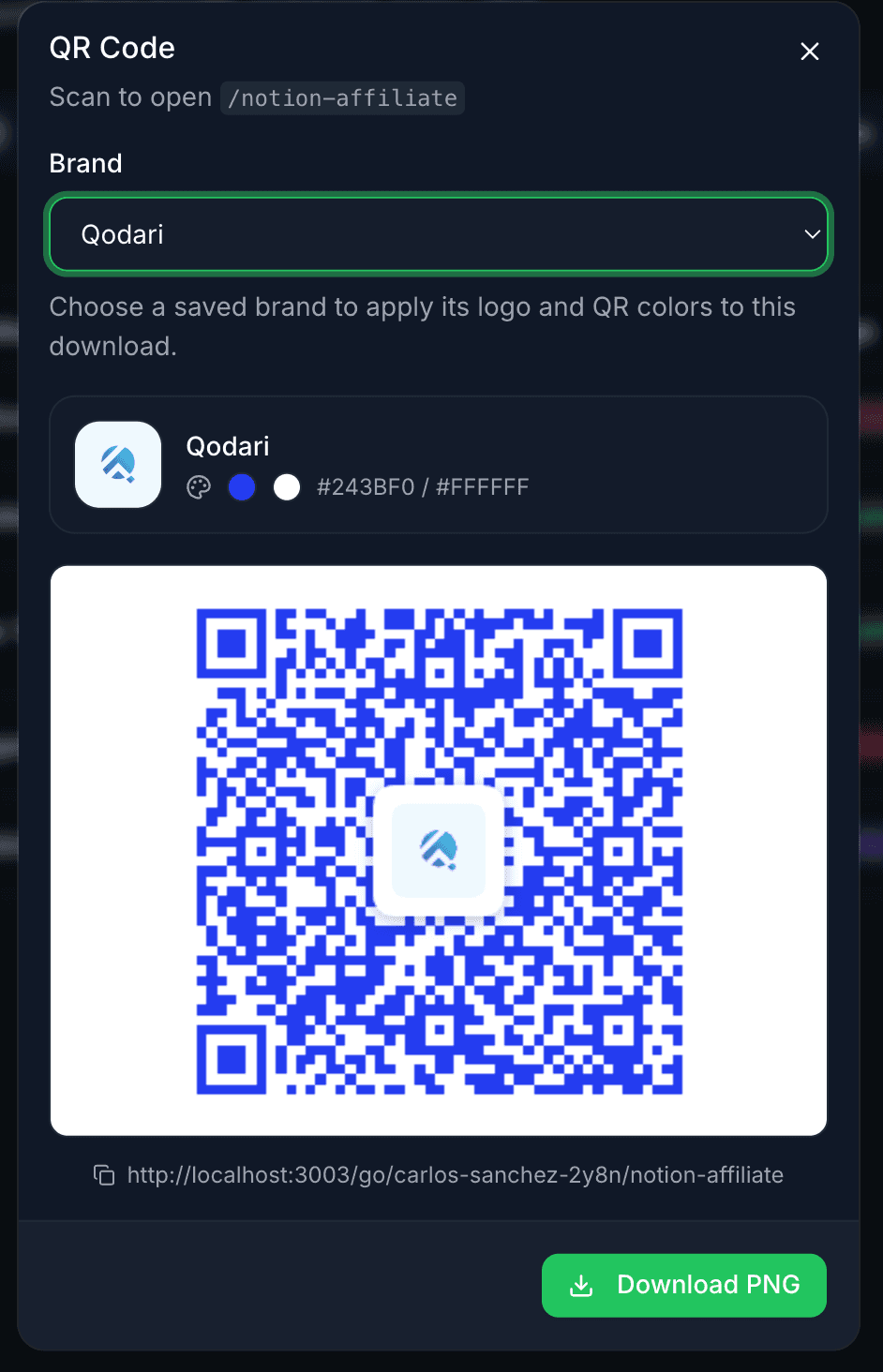
qr-with-brand.png
  • Standard AffProf QR is plain black-and-white and works on every plan.
  • Saved brands update the preview immediately with logo and colors.
  • Use the standard QR for maximum compatibility or low-resolution printing.
Note about naming: don’t confuse "Standard AffProf QR" (the system option that produces a plain black-and-white QR with no logo, always available) with a brand you might create and name "AffProf" yourself. They’re separate things. The system option is always there regardless of your brands. A brand named "AffProf" that you created is just a custom brand that happens to use that name.
Download
Click Download PNG to save the QR code.
  • The file is a high-resolution PNG suitable for print and digital use.
  • The filename includes the link slug for organization.
  • The destination URL appears in plain text below the QR for accessibility.

One link, multiple QR variations

You do not need separate links for separate QR styles. Download multiple QR codes from the same link by switching the brand each time.

  • Instagram stories: branded with your YouTube logo and channel colors.
  • Printed business cards: black and white, smaller, no logo for low-quality printing.
  • Trade show banner: main logo and high-impact colors.
  • All variations redirect to the same destination and contribute to the same link analytics.

Tracking QR scans

QR scans count as a separate metric in analytics. AffProf detects when a click came from a QR code and tags it accordingly.

  • QR scans: total scans of QR codes for this link.
  • Recent clicks: entries tagged as QR.
  • Dashboard: total QR-driven traffic across all links.
  • Useful for measuring ROI of physical placements and print campaigns.

Common questions

Can I use the same brand for multiple links?

Yes. Brands are reusable. Set them up once, then apply them to any link.

Can I have a brand without a logo?

Yes. Logo upload is optional. You can use colors only.

Why does my logo look blurry?

The logo may be low resolution, or the QR may be displayed too small. Use at least 500 x 500 px for best results.

Will adding a logo make my QR fail to scan?

QR codes have built-in error correction. Branded QRs scan reliably as long as you maintain strong contrast.

Can I use a transparent logo?

Yes, but solid-background PNGs are usually safer, especially with colored QR backgrounds.

My downloaded PNG has a watermark or wrong colors

That should not happen. Contact hello@affprof.com with the link slug and selected brand.

Can I generate QR codes in bulk?

Not yet. QR codes are downloaded one at a time. Bulk QR export is being considered for a future update.

Setup recommendation

1Create one default brand
5 minutes
  • Settings -> Brands -> Add brand.
  • Name it after your main use case.
  • Toggle it as default.
2Generate your first branded QR
1 minute
  • Pick any link -> actions menu -> QR Code.
  • Confirm your default brand is pre-selected.
  • Download PNG and verify it looks right.
3Add more brands as needed
as you grow
  • Different campaign? Different brand.
  • Seasonal promo? Create a seasonal brand.
  • Black-and-white print ad? Save that as a separate brand.

Advanced QR tips

Sizing for print
  • Minimum size: 2 cm x 2 cm, about 0.8 inches.
  • Posters and flyers: 3-5 cm.
  • Trade show banners: 10 cm or larger.
  • Include a small scan prompt nearby.
Sizing for digital
  • YouTube end screens: at least 200 x 200 px.
  • Instagram stories: at least 400 x 400 px.
  • Presentations: at least 300 x 300 px, larger for TVs or projectors.
  • PDFs: use high resolution because users often zoom.
Contrast and readability
  • Scan it yourself before publishing.
  • Test in low light if the QR appears in a dark venue.
  • Print a test copy and scan from 1-2 meters away.
  • Test with real camera apps like iOS Camera, Android Google Lens, and scanner apps.
Where QRs perform well
  • Video content viewers can pause.
  • Print materials people examine up close.
  • Presentation ending slides with 15+ seconds to scan.
  • Packaging and in-person events.
Where QRs perform poorly
  • Fast-moving video with less than 5 seconds on screen.
  • Billboards, motion graphics, and tiny placements.
  • Glossy or curved surfaces.
  • Anywhere the audience does not have a phone in hand.

Need help?

Email hello@affprof.com with your account email and a description of what you are trying to do. We respond within 24 hours, faster for Pro users.